
Appearance
Giggle Trade Platform — User Guide
This guide introduces the complete buyer-side experience on giggletrade.com: discovery, comparison, ordering, payment, and follow-up.
1. What Giggle Trade Is
Giggle Trade is a B2B marketplace for used and refurbished mobile devices. It combines:
- Product-level browsing (Catalog) for wholesale planning.
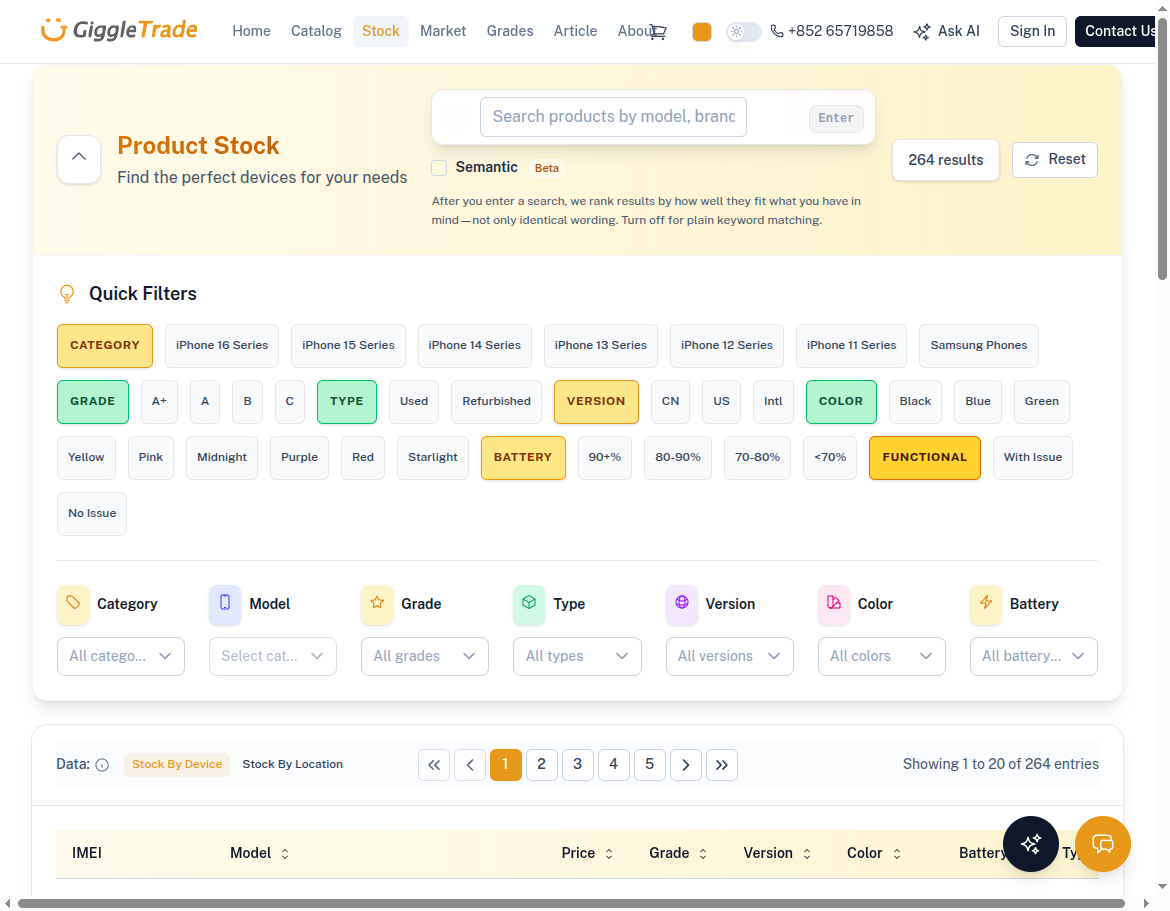
- Device-level browsing (Stock) for exact unit selection.
- Weekly market references, grading standards, and buying workflows.
- Ask AI and partner resources to speed up sourcing decisions.
2. Main Navigation
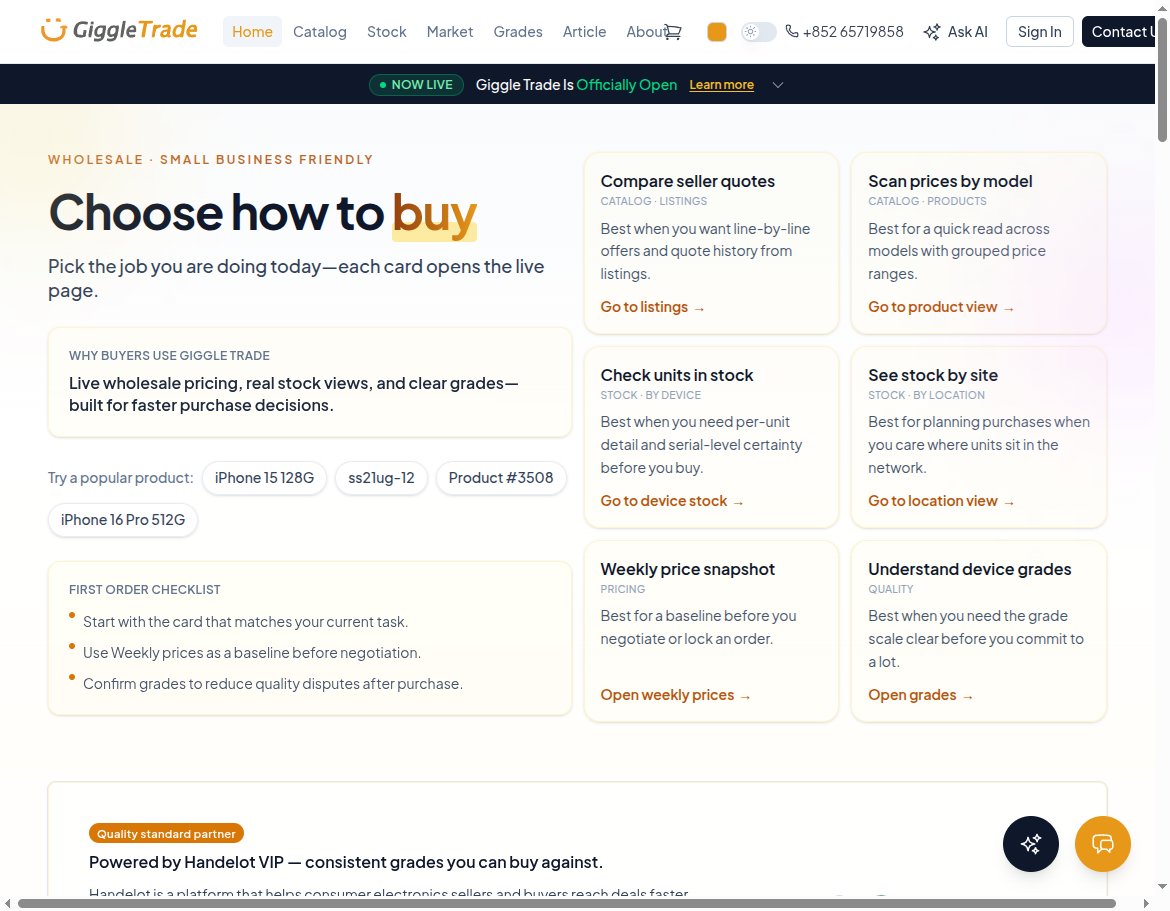
From the top navigation, users usually work across:
- Home: entry point, buying paths, quality highlights.
- Catalog (
/market/catalog): model-level view for comparison and bulk planning. - Stock (
/market/stock): device-level view with availability and per-unit detail. - Market (
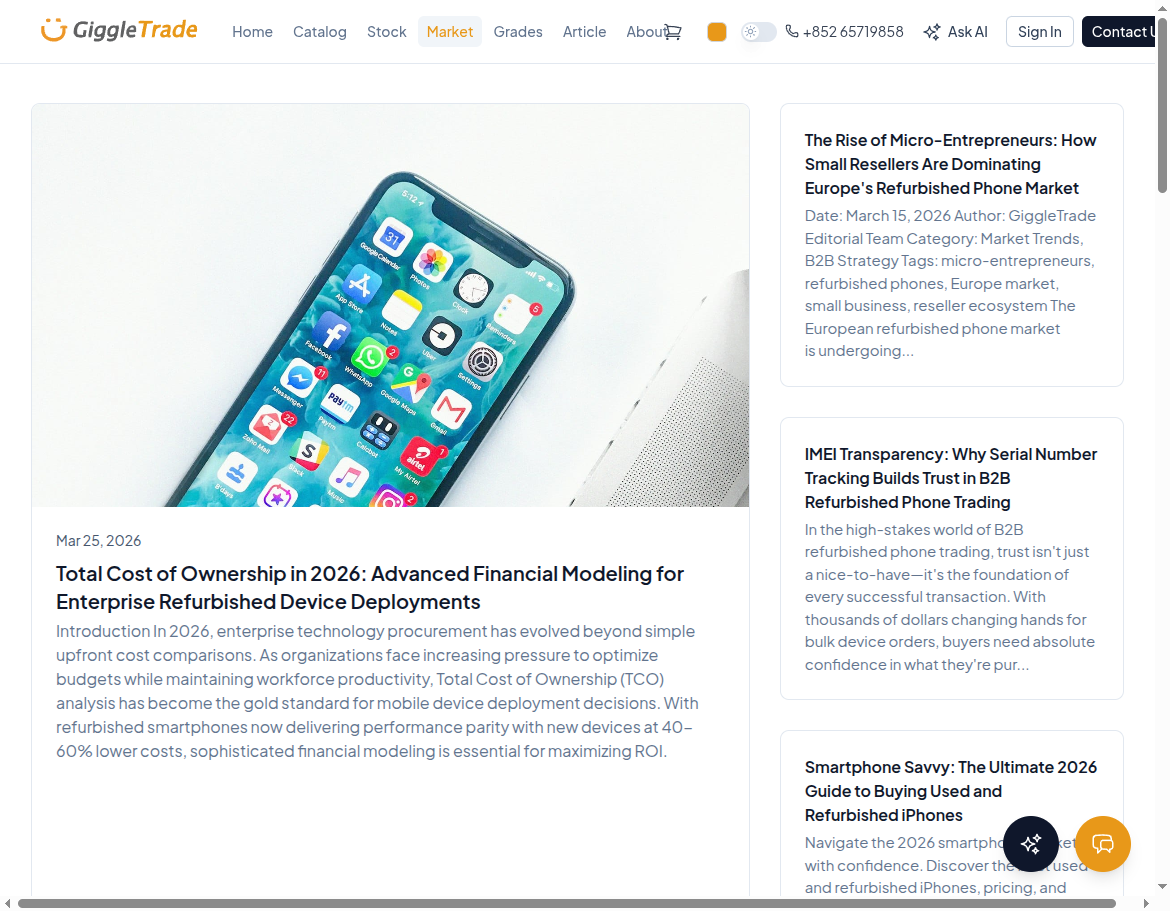
/market): marketplace hub and editorial content area. - Grades (
/grades): grading standards and inspection concepts. - Article (
/article): market trends and industry guidance. - Ask AI: context-aware assistant for public catalog/stock data.
3. Catalog vs Stock
| Path | Best for | What you get |
|---|---|---|
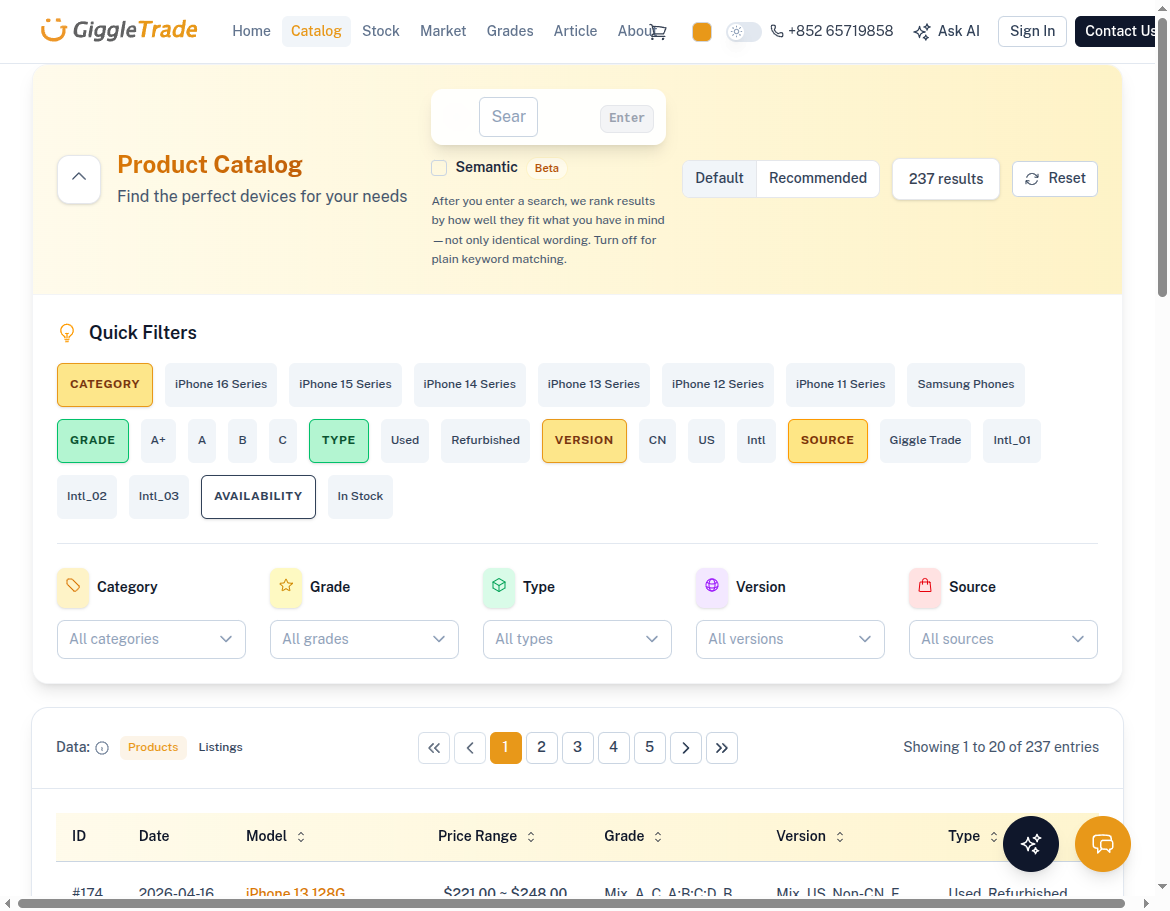
| Catalog | Bulk or model-level sourcing | Aggregated offers, weekly reference ranges, filters, semantic search, product-level comparison |
| Stock | Exact unit purchase | Per-device inventory, condition specifics, IMEI/attributes, battery filters, immediate availability view |
Choosing quickly
Start with Catalog if you need a model shortlist and pricing direction.
Start with Stock if you already know what to buy and need exact units now.
4. Key Features for Buyers
Semantic search (when enabled)
- Available on Catalog and Stock pages.
- Helps match by intent/meaning, not only exact text.
- Usually controlled with a Semantic toggle near search input.
Battery visibility
- Battery data may appear as a list column or detail attribute.
- Stock supports battery range filtering and sorting when data exists.
Media and verification context
- Device pages can include image/video galleries for condition review.
- Grade and inspection context helps align expectations before ordering.
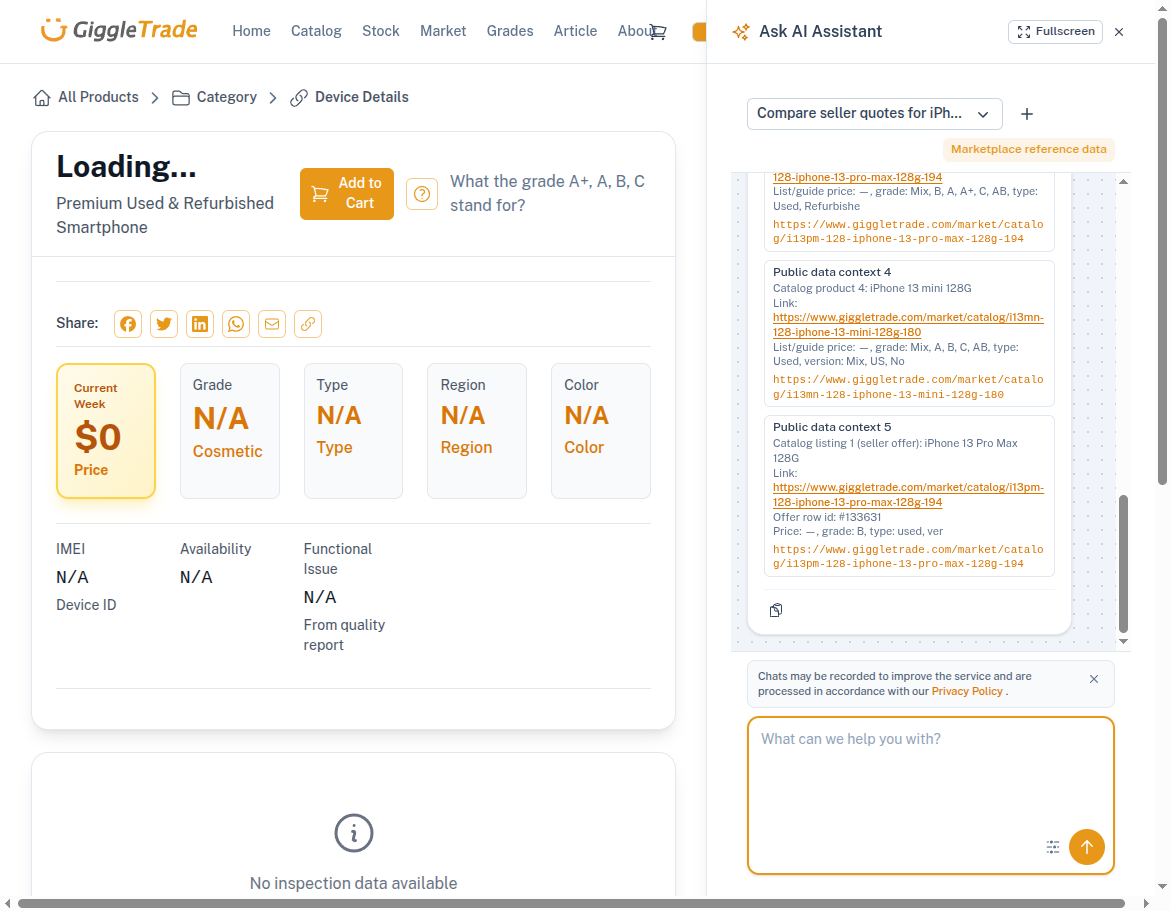
Ask AI
- Ask about public listings and stock availability.
- Helpful for quick comparison and jumping to relevant pages.
5. Buyer Journey (High-Level)
In practice:
- Use Catalog or Stock to build your purchase plan.
- Review cart and checkout details.
- Submit the order and wait for platform confirmation.
- Complete payment (deposit/full depending on order type).
- Track order progress in My Orders.
6. Important Pages
| Page | URL | Purpose |
|---|---|---|
| Catalog | /market/catalog | Model-level browsing and comparison |
| Stock | /market/stock | Device-level inventory browsing |
| Cart | /my/cart | Review and adjust selected items |
| Checkout | /my/checkout | Shipping and order confirmation |
| Orders | /my/orders | Track and manage submitted orders |
| Payment | /my/orders/[id]/payment | Complete deposit, balance, or full payment |
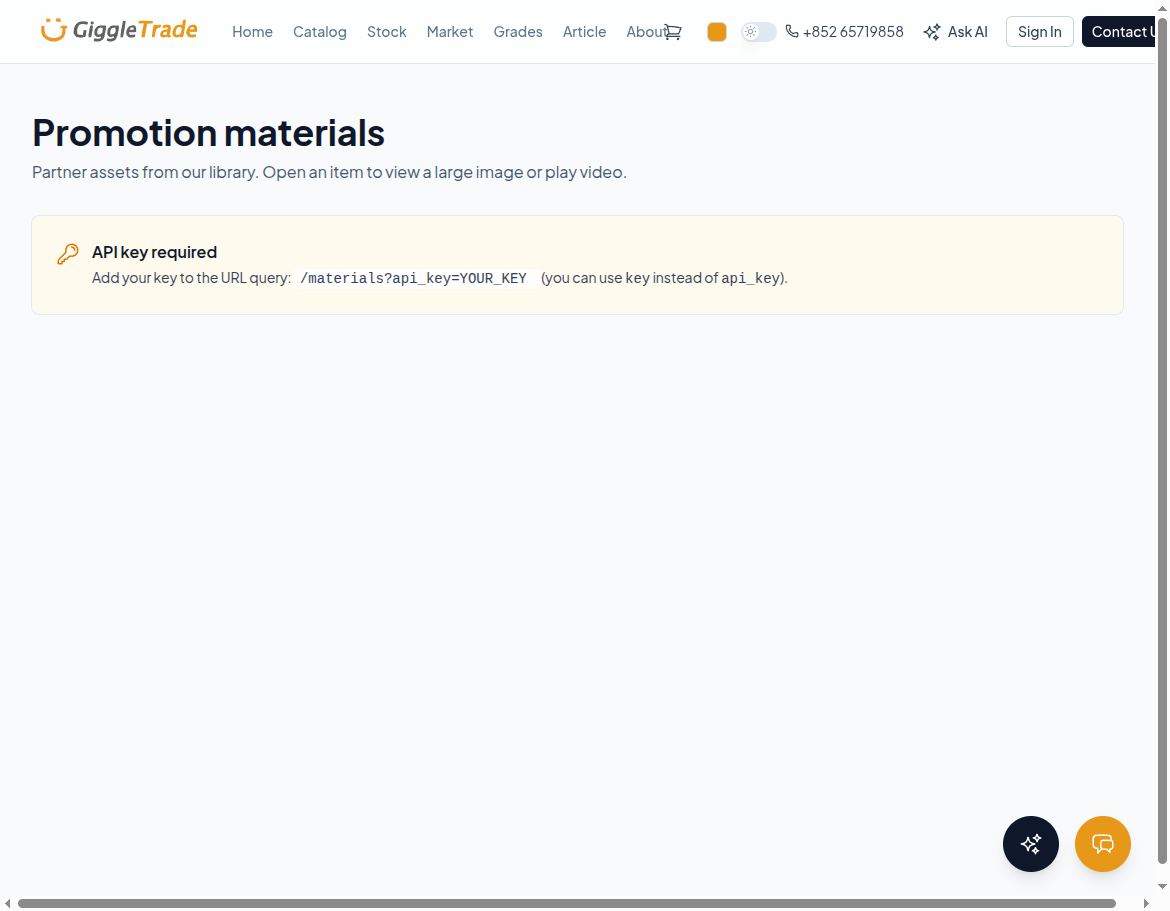
| Materials (partners) | /materials | Promotion assets; API key may be required |
7. Access and Permissions
- Public users can browse Home, Catalog, Stock, and content pages.
- Login is required for cart, checkout, and payment actions.
- Partner-only resources (like
/materials) may require account-level authorization or API key access.
Next Steps
- What's new — latest capabilities and UI improvements.
- Catalog → Order → Payment — detailed catalog purchase flow.
- Stock → Order → Payment — detailed stock purchase flow.